License settings
To use the different encryption modules, you need different licenses. You can find the license settings in the Global Settings section of the Policy Editor.
Please refer to the DriveLock installation and administration documentation for general licensing information at DriveLock Online Help..
The example of licensing BitLocker Management and DriveLock PBA for BitLocker illustrates the process:
-
In Global Settings, go to Settings and then double-click License.
-
Open the Licenses tab.
-
Select Add License File... or Add License Key... and follow the License Activation Wizard.
-
On the Modules tab, select the BitLocker Management and DriveLock PBA for BitLocker licenses.
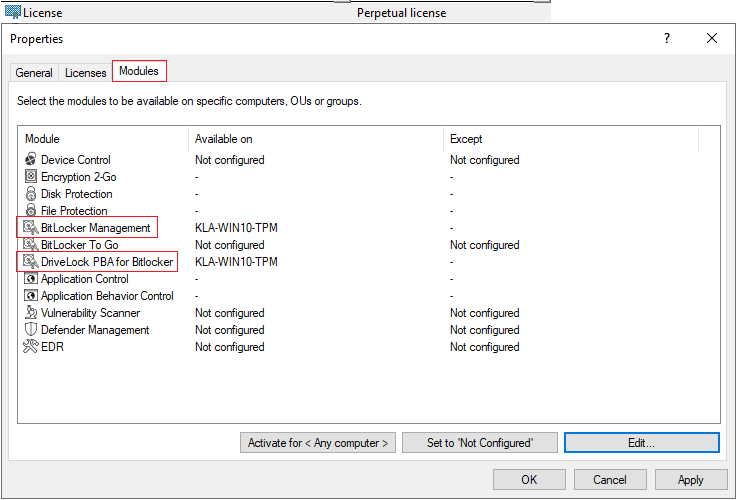
-
Either activate the license for <All computers> or click the Edit... button and select specific AD computers, groups OUs where you want to deploy BitLocker Management.
-
Confirm your settings.
It is not possible to assign the Disk Protection and BitLocker Management license in one policy at the same time!