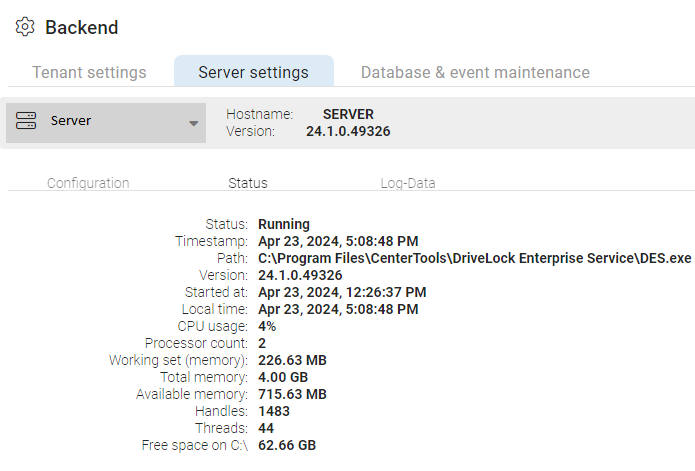
DES status
You can display the status of a particular server in the DOC. Here you will find all information about the server. The log files are also located next to it.
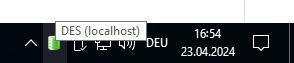
In the DMC, you can monitor and check the accessibility of the DriveLock Enterprise Service using the DES taskbar icon. If the service is not available, this is shown in red. During service startup, it may take a few minutes for the status to change to green. Double-click on the icon to open the detailed view.
You can see different connection information like the address, database server, database type, database name or its version. Right-clicking on the icon opens a context menu that allows you to quickly restart the DriveLock Enterprise Service or perform actions useful for support.