Disk key recovery
Please do the following:
-
Select Disk key recovery as the recovery type.
-
If you have configured Disk Protection to send the client recovery keys to DriveLock Enterprise Service, select the DriveLock Enterprise Service option. To specify a file as the location of the required recovery disk keys, select Recovery files (copied from the agent computer).
-
In the next dialog, select where the certificates/recovery keys are stored. You can either enter the path to the DLFDEMaster.pfx file and the corresponding password (File system option). Or you can select Smart card to access a private key that was stored on a smartcard. If the certificate information with the private key was imported into the local certificate store of the currently logged in user, you can also select the first option Windows certificate store.
-
In the next dialog, either select the agents with DriveLock Disk Protection or specify the file for the recovery information.
Each client computer has its own corresponding EFS recovery file that must be used for drive recovery. If you configured DriveLock Disk Protection to upload this file automatically to a central shared folder, the file name is prefixed with the name of the client computer (for example: DE2319WX_Backup.zip). The EFS disk recovery files are automatically generated by the DriveLock Agent when it starts encrypting hard disks.
-
In the next dialog you specify where the disc key will be stored. It is necessary that Disk Protection creates a special disk key. Specify a file name and path. Alternatively, you can specify the path and file name manually.
Make sure to specify the correct file extension (*.dke).
Specify a password to secure access to this file. The password must be at least six characters long It will be needed later for recovery.
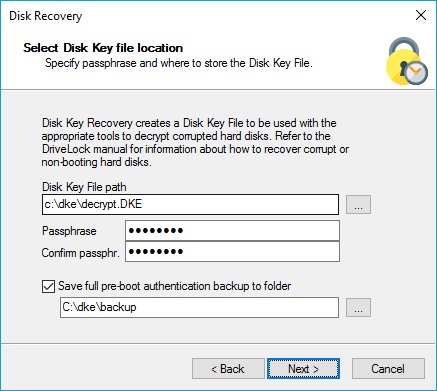
Select the Save full pre-boot authentication backup to folder checkbox and type the path for the location of the Backup.zip file that contains all recovery data stored in the DriveLock database for this computer.
-
Click Next to create the disc key.
If you selected a smartcard, you will be prompted for the PIN that is required to access the smartcard.
-
Now you can copy the created file to a USB drive or the recovery CD to use it in the next steps.