Information on the Messages tab
Configuration: DOC -> Security controls -> Applications -> Configuration -> Application rules -> Basic properties
In the DriveLock Management Console (DMC), notifications are configured on the Messages tab.
The standard message texts for Application Control that are displayed on the DriveLock Agent are configured in the Global configuration node, sub-node Multilingual notification texts, option Languages / Standard messages on the Applications tab.
-
There is only one option on this tab available for application behavior rules, and it is enabled by default:
- Display message when access is denied: Select a default text from the drop-down list or define your own text to be shown to the user when access is blocked.
-
Depending on the access mode, the following wildcards are allowed:
-
Access mode Execute:
%EXE% for the name of the application; %PARENT% for the name of the program that starts the application.
-
All other access modes:
%EXE% for the name of the application; %TARGET% for the access target.
-
-
There are three options for application rules:
-
Display custom message in user notification: Again, you can select a standard text or define your own text.
-
Check Display no message when this rule is activated if the user does not need to know when an application is blocked (by a blacklist).
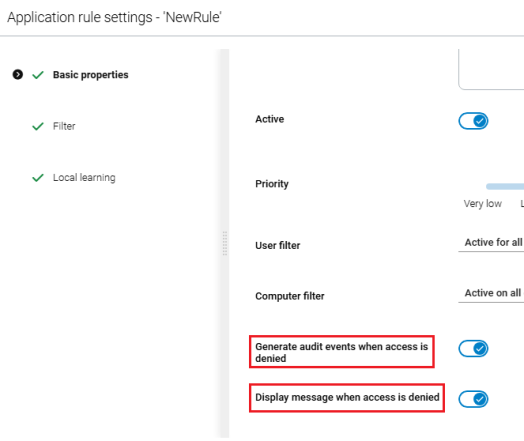
Please note that in the DOC this option is called Display message when access is denied and is activated by default (see Illustration). You can deactivate it if you do not want any messages to be displayed.
-
By default, events are generated when applications are blocked. If these events are not required, check Do not generate audit events when this rule is activated .
Please note that in the DOC this option is called Generate audit events when access is denied and is activated by default (see Illustration). You can deactivate them if you do not want any events to be generated.
-