Active Directory inventory (DriveLock Agent)
Configuration: DOC -> Settings (gear icon) -> Backend -> Tenant settings -> Inventory -> Enable automatic AD inventory collection via agents
The DriveLock Agent Enterprise Service can determine one agent for each domain that is known in the database. This agent collects the AD inventory and sends it to the DES. All agents that have Windows as their operating system and have logged on in the last 7 days qualify for this.
In this case, select the setting Enable automatic AD inventory via agents.
The following options are available:
Using these options affects both AD inventory via the server and via the agent (DOC or automatic).
-
Automatic AD inventory collection interval in hours: The default value specified here is 12 hrs.
-
Retrieve computer, group, OU or user data from the AD during AD inventory collection: These settings are enabled by default to ensure that this data is always retrieved up-to-date.
-
Collect user certificates: Collecting user certificates during AD inventory can be disabled if you don't need to use user certificates. Please note that these are mandatory, for example, for centrally managed folders for File Protection!
-
Filter AD inventory: In addition to the object types that are collected, objects can also be filtered using their DistinguishedName.
To add a filter, click
 . In the DistinguishedName filter field, you can use the following syntax, for example:
-
*OU=production*,DC=company,DC=com: this variant selects all objects that are in an OU that begins with Production and the objects contained therein (computer, user, OU, etc.)
-
OU=production,DC=company,DC=com: this variant selects all objects that are contained in the explicit OU Production
-
In the DOC, the automatic AD inventory can also be triggered manually on a selected agent by selecting the following in the context menu: Additional actions -> Show all actions -> Category: Inventory -> Send Active Directory inventory.
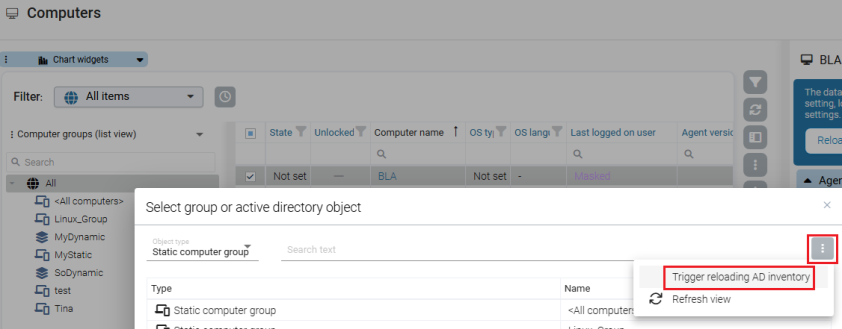
If necessary, you can reload the Active Directory inventory in the 'Object selection dialog' to display the latest objects, see figure.