Remote control settings and permissions
In the DriveLock Operations Center (DOC), the remote control settings are available at the following location: DOC -> Security Controls -> Agent settings -> Global settings -> Agent remote control. The Use certificate from file setting is not possible there.
You must define permissions in order to perform remote control actions on DriveLock Agents.
In the DriveLock Management Console (DMC), you can set different permissions for users to remotely control DriveLock Agents under Remote control settings and permissions in the relevant policy by selecting Settings in the Global configuration node. In addition, you define further connection settings here.
The following tabs are available:
-
General:
-
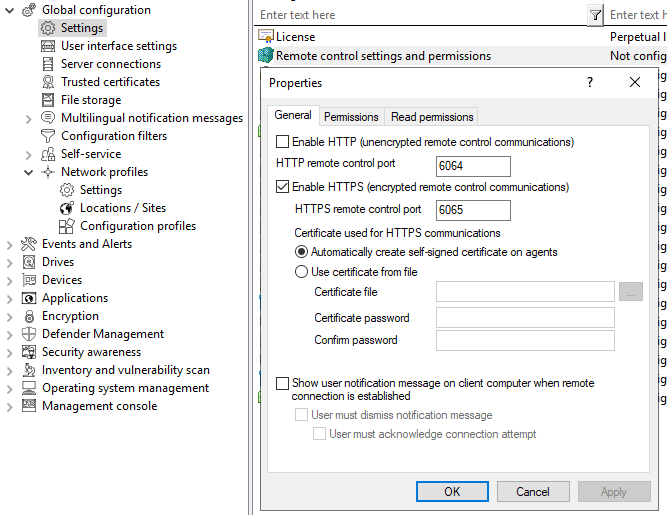
The remote control port 6064 is set for unencrypted or 6065 for encrypted connections. You can change these ports if necessary. The Enable HTTPS (encrypted remote control communication) setting is set by default.
For safety reasons, we strongly recommend using this setting. DriveLock agents thus refuse unencrypted connections.
-
Normally DriveLock uses an automatically generated and self-signed certificate for the HTTPS connection. Select the Use certificate from file option to use a different certificate, which you can then select using the ... button. If the private key of the certificate is protected by a password, enter it twice.
-
If you have selected the Show user notification message on client computer when remote connection is established option, the currently logged-in user on the target computer will receive a notification about the remote control access that has taken place.
-
-
Read permissions : here you specify users or groups who are only allowed to request information from DriveLock agents during remote connection actions.
-
Permissions: here you specify users or groups who are explicitly allowed to perform actions on the agent, for example, to temporarily release an agent or make changes to the configuration.