Organizing dashboard tabs
Users now have the option of flexibly managing their dashboard tabs. The following actions are available directly in the user interface:
-
Add dashboard tabs:
New dashboard tabs can be easily added via the
 button.
 -
Arrange my dashboards:
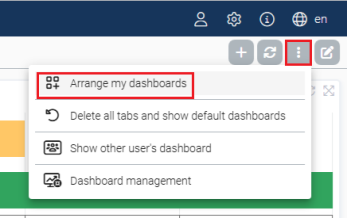
Drag and drop to change the order of all tabs or remove them from the personal view if required.
The following types of dashboards are available:
Type
Source/Function
May be edited
May be removed
Copy created by the user
This is a dashboard created by the user. It is always a copy of an existing dashboard with freely editable content and structure.
yes
yes
Dashboard linked via user
This is displayed as a reference and cannot be edited, but may be removed.
no
yes
Dashboard linked via role
This is automatically assigned to users who have a specific role. Likewise displayed as a reference and cannot be edited.
no
no
All dashboards that were not explicitly created by the user appear as links (references) in the personal view and cannot be edited.
-
Delete all tabs and show default dashboards:
This deletes all dashboards and keeps only the dashboards assigned via the role in the view. If no dashboard is assigned via a role, only the 'Home' dashboard remains.
-
Show other user's dashboard:
Here you can view the dashboards of other users and create your own copy.
-
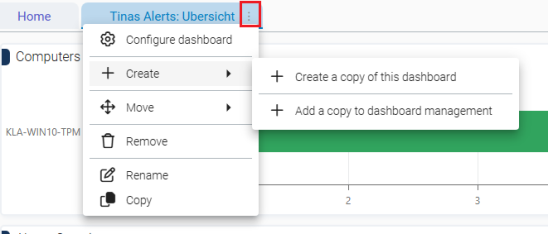
Configure dashboard or create copies:
-
Under Configure dashboard you will find the two options Update automatically for all widgets and Widget caching.
-
Under Create , you can either create your own copy of any dashboard or add a copy in the user-defined dashboards in the dashboard management.
-