Options in the Defender dialog
On this tab you can see the time of the last scan on the agent, check whether any errors occurred and, for example, whether antivirus protection is enabled or what version the signature has.
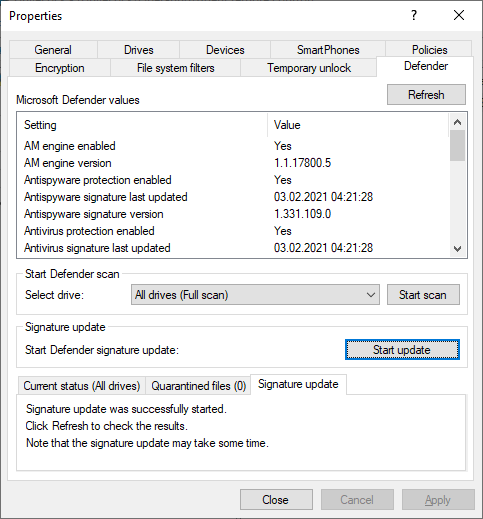
The following options are available:
-
Click Refresh to reload the values.
-
Click Start Scan to start a Defender scan immediately. Then if you click Refresh, the current status will appear on the corresponding tab.
-
Under Select drive, the following scan types are available:
-
Full scan: A full scan starts with a quick scan and then scans all mounted hard drives as well as removable or network drives — provided that full scan has been configured to include these.
-
Quick scan: A quick scan checks common locations where malware is known to register itself to start with the system — such as registry keys and standard Windows startup folders. Quick scans are also performed on mounted removable media like USB drives.
Source: Microsoft
-
Offline scan: This option immediately shuts down the computer, boots it into a special environment (outside the regular Windows operating environment), runs a Microsoft Defender scan, and then restarts the system. During this process, the end user cannot continue working. You can define whether the end user is informed about this process and how long in advance a corresponding notification is displayed. Additionally, you can specify how long the offline scan can be postponed. A personalized message can also be entered. If you do not enter a message, a default message is displayed.
-
-
Click on Start update under Signature update to instruct Defender to renew the signature.
-
The Current status tab provides an overview of the history and result of the last scan performed.
-
The Quarantined files tab lists all the files in quarantine (not just those from the last scan).
-
You can see the signature update history on the Signature update tab.