Awareness
Usage policies are notifications that inform end users about security-related measures or company policies before they can access a drive or device. The drive or device is only unlocked after the Usage policies have been read and accepted in a traceable manner.
Usage policies are cross-platform and can therefore also be used on macOS and Linux.
Usage policies can be customized or phrased in different areas in the policy editor of the DriveLock Management Console (DMC):
-
In the Global configuration in Multilingual notification messages in the Languages / Standard messages menu
-
In the Security Awareness settings under Customized usage policy texts and options (monolingual).
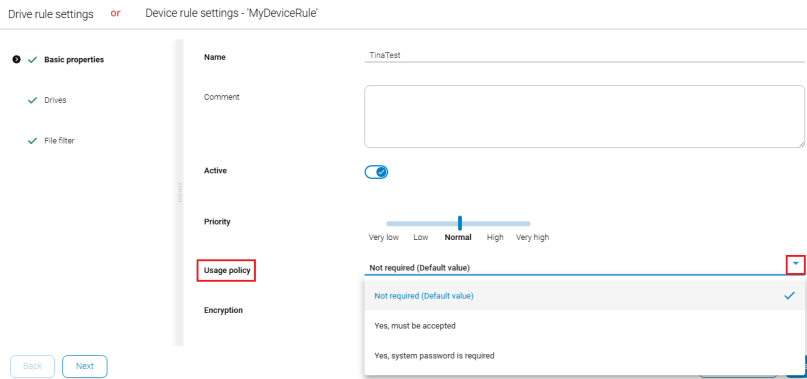
In the DriveLock Operations Center (DOC), you can enable usage policies in the basic properties of device or drive rules.
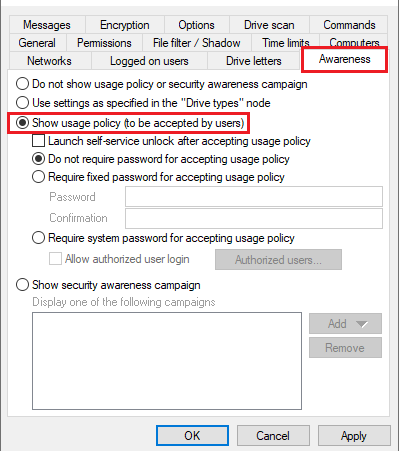
In the DriveLock Management Console (DMC), you can create a usage policy globally for the entire policy. You can then enable it on the Awareness tab in a similar way to a security awareness campaign within a drive or device rule.
Drive rule:
Device rule:
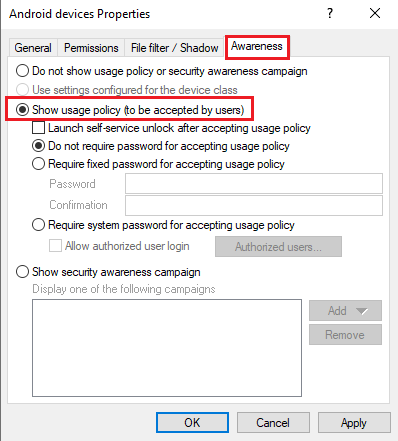
To do so, select the Show usage policy option (to be accepted by users).
The following options are also available:
-
Launch self-service unlock after accepting usage policy: Once the user confirms the usage policy, the self-service unlock wizard is started automatically.
If the accepting user does not have permission for self-service unlock, the usage policy can still simply be accepted without the self-service unlock being started. If you want to specify users who are allowed to accept the usage policy, you can enter them in the list using the Authorized users option.
-
Require fixed password for accepting usage policy: Provide a password that the user must enter before unlock
-
Require system password for accepting usage policy: If this option is active, the logged-in user must enter their system password for confirmation
-
Allow authorized user login: This option lets you unblock the file with a different user account than the one that is currently logged in, by entering the user name and the appropriate password. Optionally, you can specify the authorized users for this via the Authorized users button.
Please note that the registered user must also be specified here in order to accept the usage policy!
-
-
Show security awareness campaign: Click here for more information on awareness campaigns.