DriveLock Operations Center (DOC)
Introduction
The DriveLock Operations Center (DOC) is DriveLock’s modern, browser-based user interface. It provides administrators and security teams with a quick overview of the current state of all managed devices. The DOC is used by both DriveLock Managed Security Services customers and on-premises customers.
Supported languages include German and English. You can switch the language at any time with a single click.
Many functions of the DriveLock Management Console (DMC) have already been migrated to the DriveLock Operations Center (DOC), where they are available in an optimized form. Please note that there may be slight differences in behavior, as certain functions are implemented differently in the DOC for technical reasons.
User Interface overview
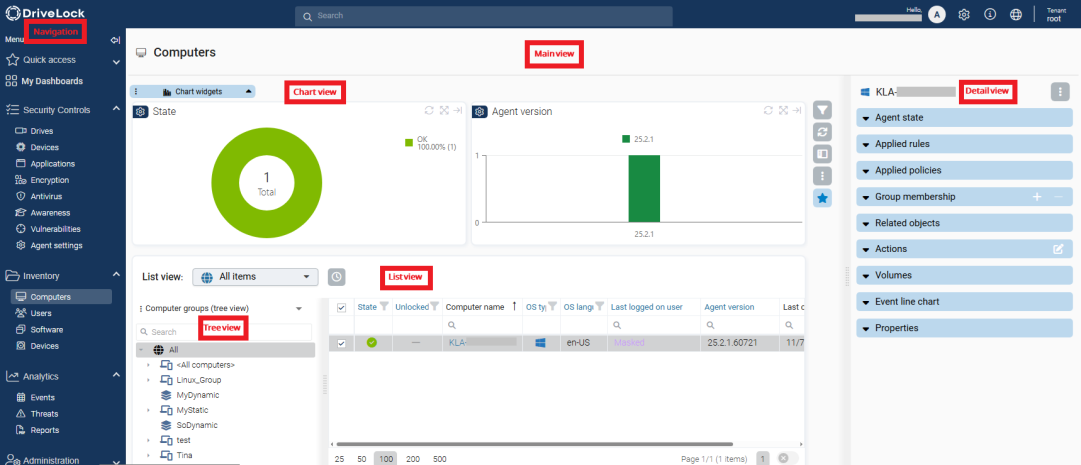
The DOC interface is divided into two main areas: The navigation panel on the left side and the main application area (main view) on the right side.
Navigation (left panel)
The navigation panel provides access to all available features and views within the DOC. It allows you to select the desired workspace – for example, a feature under Security Controls, the Computers or Users workspace under Inventory, Events under Analytics, or Policies under Administration.
Main view (right panel)
The Main view dynamically displays content based on your selection in the navigation. Depending on the context, it consists of the following components:
-
Chart view (chart widgets): Displays graphical summaries such as pie or bar charts to visualize the current status of objects (e.g. agent state, version distribution). These chart widgets always reflect the same set of objects shown in the list view.
-
List view: Displays tabular data for all objects relevant to the selected category. The List view supports filtering, sorting, and customization via saved views.
-
Tree view: Located on the left side of the main view, this is a categorized or grouped display of objects — for example, by computer group, AD structure, OS type, or saved custom views.
Detail view (right sidebar)
When selecting an object in the list view, the Detail view opens on the right. It shows additional information and status details for the selected object — such as a computer, user, or device.
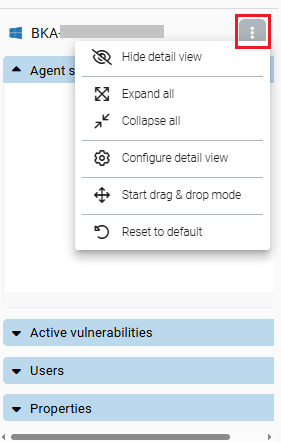
The Detail view can be customized by clicking the three-dot menu  . You can adjust the order and selection of displayed widgets (e.g. agent state, applied rules, volumes, etc.).
Object view
For supported object types, an additional object view can be opened. This is a structured, static dialog window that displays all available data for the selected object. Unlike the detail view, the object view cannot be customized by the user.
Favorites (Quick access)
Frequently used views and functions can be marked as favorites by clicking the  in the vertical toolbar. These favorites will then appear under Quick access, making it easier to switch between commonly used sections.
Configuration
Many areas within the DriveLock Operations Center (DOC) are customizable. Via the menu, you can access configuration options for the detail view, display settings, or filters, depending on the context.
Configure views
The Configure views option (available via the  toolbar button) allows you to fully customize the current view. This includes: structure and layout, visible elements. display options and filters.
View configurations can also be imported and exported, making it easy to reuse or transfer custom configurations.