Taskbar notification area settings
This setting is configured in the policy editor of the DriveLock Management Console (DMC).
If you want to display specific icons in the taskbar information area of the DriveLock Agent or send notifications to the user, you will need to select the appropriate items and place them in the correct location (this is where they will be displayed to the user).
Open the Agent user interface settings in your policy under Global configuration and select the following setting:
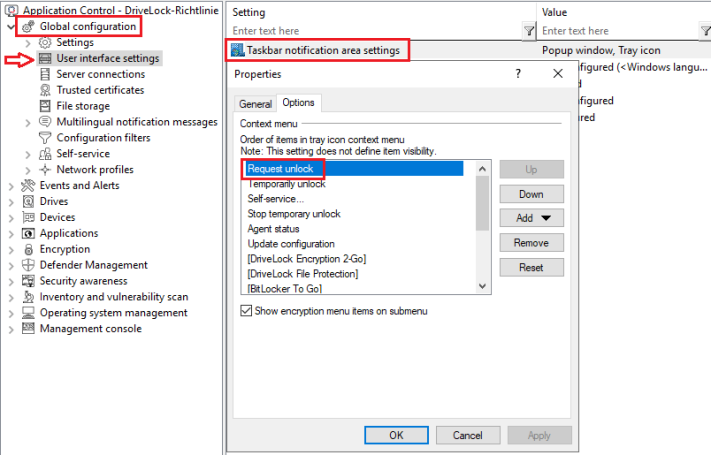
On the General tab you can choose whether user notifications should be displayed to the user as pop-up dialog windows or balloon tips.
-
If you select Display popup window, configurable messages are displayed. You also have the possibility to define your own custom messages including HTML instructions.
-
If you select Display balloon messages, the corresponding message from Windows will be displayed as a balloon. To select this, the option Display notification are icon must also be set.
-
The DriveLock icon is needed in the information area to display bubble tips. You can configure the icon to be visible only during a message. To do so, select the option Display icon only when a message is displayed.
-
The Display messages for... duration bar defines how long the message is visible.
-
To enable the DriveLock sound that plays when messages are displayed, check the Play sound when a message is displayed option.
On the Options tab, you configure the way DriveLock functions are displayed to the end user in the context menu of the taskbar icon.
-
To change the order of the elements, select the desired element and click Move Up or Move Down . Click Remove to delete the selected item. To add elements that are currently not visible, such as a separator line, click Add .
-
To restore the default settings, click Reset.