Offline unlock for DriveLock Agents
To unlock offline agents which are not connected to your network, you need to follow the steps below. This process involves the end user and the administrator, both of whom have different tasks to perform.
In the DriveLock Operations Center (DOC), use the menu command Unlock computer (offline) in the context menu of the respective computer under Temporary unlock (see figure).
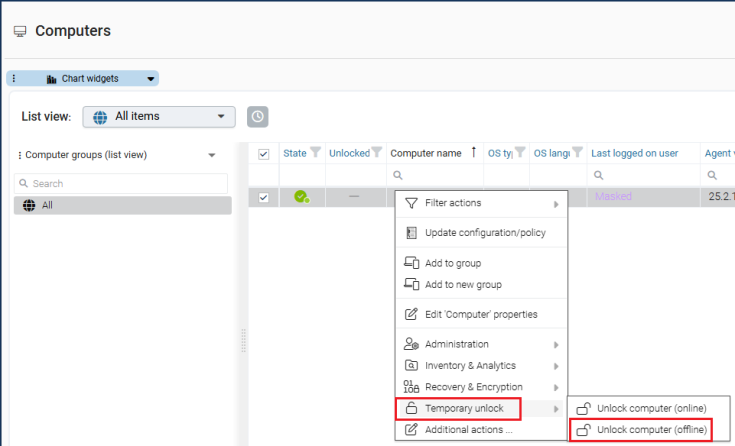
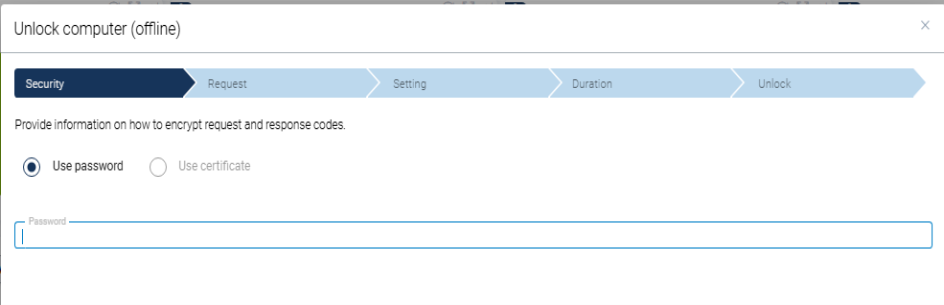
The wizard for offline unlocking opens. Please make sure that you have previously configured the setting for offline unlocking. The next steps correspond to those starting from step 2 below DriveLock Management Console (DMC).
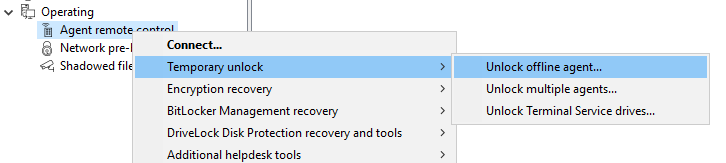
Proceed as follows in the DriveLock Management Console (DMC):
-
Right-click Agent remote control, then Temporary unlock and then Unlock offline agent from the context menu.
-
Depending on the offline unlock setting you specified in your policy, enter the password for offline unlock or select a certificate. You can import a certificate from a file or from the Windows certificate store on the local computer. To import a certificate from a file, click Import from file and select the certificate file. To import a certificate from the local certificate store, click Import from store.
-
Enter the computer name and the request code provided by the user. DriveLock verifies the data. If the request code was created over an hour ago, this is shown in the "Age of code" field.
-
The code provided by the user to unlock the DriveLock Agent is only valid for one hour. If this time is exceeded, the wizard must be restarted to temporarily unlock the computer.
-
Select the permissions and the period during which the unlock is valid.
-
The unlock code is displayed. The user will need to enter the returned unlock code in the appropriate area.