Editing dashboards
Add your own dashboard
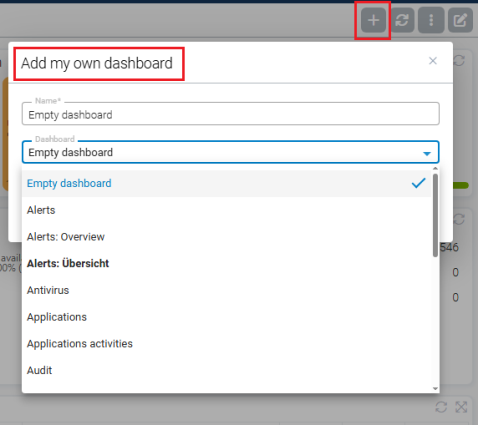
You can add your own dashboards via the  button. This can be an empty dashboard, which is then individually filled with widgets and customized, or a built-in DriveLock dashboard, such as the Alerts dashboard.
Edit tabs
You can customize the structure of a dashboard’s tabs. Tabs can be added, removed, renamed or moved in order. These changes apply only to the dashboard you are currently editing.
-
Manage widgets
Within a tab, widgets can be added, moved, resized, or removed. The underlying widget definition remains unchanged; only the layout and presentation within the dashboard are modified.
Activate edit mode
To modify a dashboard, you must first activate the edit mode. Click the  button in the dashboard bar. Once edit mode is active, the dashboard controls change.
Each tab now offers additional functions, including:
-
Add widgets
-
Move or resize widgets
-
Add or delete rows
-
Adjust row height
-
Move rows
-
Copy or paste all widgets from a row
Changes to the dashboard structure can be made only while edit mode is enabled. When finished, exit edit mode using the same button.
Interaction with global options
When configuring a dashboard, the following settings should be taken into account:
-
Auto-refresh (can be enabled globally)
-
Minimum refresh interval
-
Cache alive time
-
Exceptions for specific schemas
For details, see the Dashboard and widget options topic.