Hard disk encryption settings
The following settings are available in this dialog.
On the General tab:
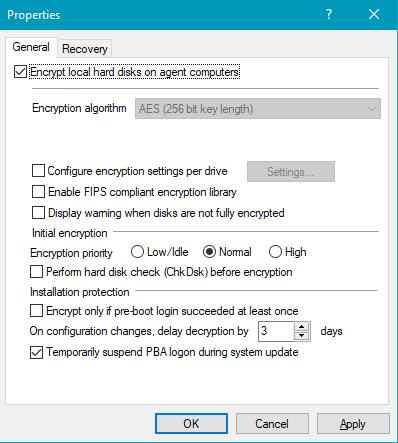
-
Here you can enable Disk Protection encryption by selecting the Encrypt local disks on agent computers option.
-
AES is preset as encryption algorithm; you can use it as such. You can choose between different encryption algorithms, we recommend AES 256-bit.
-
With Configure encryption settings per drive you can specify the encryption for each drive separately. The default setting is to encrypt all local hard disks.
-
If you select Enable FIPS compliant encryption library, the FIPS library will be used. Performance is better if you do not select this option; a CC EAL-2 certified non-FIPS library automatically uses AES NI (Intel® Advanced Encryption Standard (AES) Instructions Set) hardware support if the client supports it.
-
To display a warning to all users indicating incomplete disk encryption, you can enable the Display warning when disks are not fully encrypted option.
-
Encryption priority: Specify the computer performance used for encryption. Normal is the default value. When set to High, other applications may run slower.
-
Perform hard disk check (ChkDsk) before encryption: Use this option to ensure the integrity of the file system on all drives you want to encrypt. This will repair all bad sectors so that Disk Protection can encrypt them.
-
Disk Protection manages a memory for some BIOS interrupt vector addresses (Legacy BIOS only). This allows Disk Protection to detect potential attacks launched by changing the interrupt vector addresses. If it detects a difference between the BIOS interrupt vector address and the previously saved copy, an error message is displayed.
If the interrupt vector address changes (e.g. due to a BIOS update), the error is still displayed. The system protection group provides a mechanism to accept authorized changes, by updating the copy of disk, keyboard, and clock tick interrupt vector addresses.
You can completely disable interrupt vector checks with the Disable any interrupt vector protection option.
-
Enable the Encrypt only if pre-boot login succeeded at least once option to delay the encryption of the disks until a user has successfully logged in to pre-boot authentication once and has thus been stored in the user database of the PBA.
-
If you want to delay decryption for some time, specify the number of days with the On configuration changes, delay decryption by x days setting. This may be useful so that the client computers and their users can be properly prepared for decryption.
The default value is 3 days. This value provides additional protection against misconfiguration. If you want to perform decryption immediately, change the setting to 0 days.
-
Temporarily suspend PBA logon during system update: If this option is activated, the BitLocker or DriveLock PBA logon is temporarily suspended during a Windows system update. Once the update is complete, encryption is automatically reactivated. This ensures compatibility and prevents possible conflicts during the update process.
On the Recovery tab:
Here you specify where to store the DriveLock Agent recovery keys for the challenge response procedure.