Manual installation with the Package Installer
Installation: DOC -> Settings  -> Installation -> macOS -> Section "Installation of the MAC-Agent with the Package Installer" -> Download Package Installer
The DriveLock Agent can also be installed using the Package Installer.
Please have the following information ready before you start the installation: URL for your own DriveLock Enterprise Service (DES) and tenant name. You will receive both from your administrator.
Please do the following:
-
Double-click the downloaded DriveLock Agent.pkg file.
-
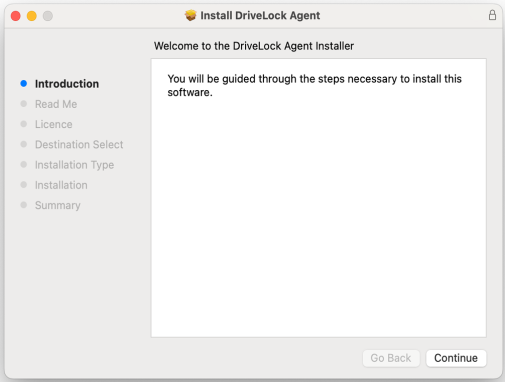
Follow the instructions in the welcome dialog and click Continue.
-
The Read Me section provides more information on the installation. Please read them carefully.
-
Agree to the license agreement under License and go to the next dialog.
-
Next, install the DriveLock Agent on the system you are currently running.
Continue by entering your password in the Installer .
Click Install software.
-
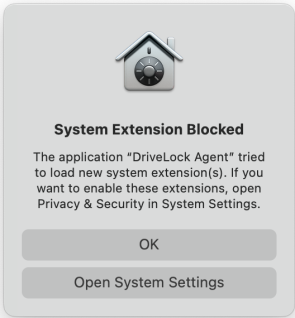
Next, Open System Settings.
-
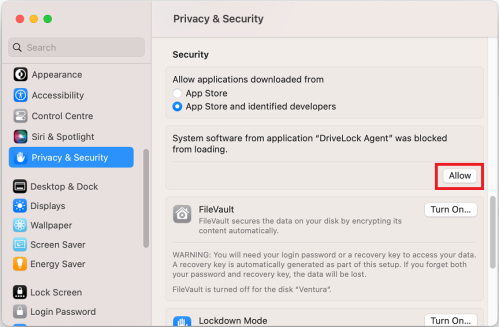
Then allow the system software to be loaded.
-
Then activate full disk access for the DriveLock Endpoint Agent Extension in the System Settings/Settings -> Privacy & Security area.
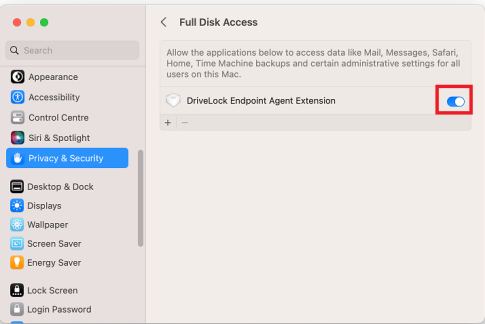
-
Once the DriveLock Endpoint Agent Extension has been allowed, you need to grant the DriveLock Agent access to your hard drive. To do so, click the '+' symbol and select DriveLock Agent from the programs.
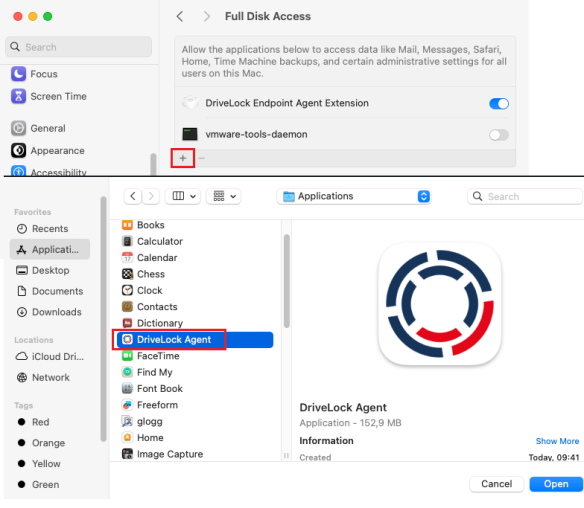
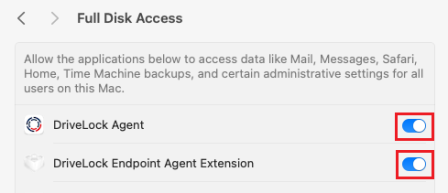
It is important that both the extension and the DriveLock Agent have access:
-
Now configure the DriveLock Agent by executing the following command line:
% sudo /Applications/DriveLock\ Agent.app/Contents/MacOS/dlconfig -t tenant_name -s DES_server_url -d debug_levelSpecific example:
% sudo /Applications/DriveLock\ Agent.app/Contents/MacOS/dlconfig -t root -s https://DES_HOSTNAME:6067 -
If necessary, you can check the process status of the DriveLock agent in the activity display.
-
After making the settings for full hard disk access, please restart the system.
-
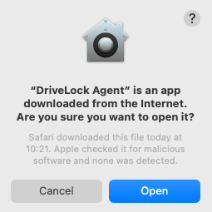
After logging in, the following dialog opens. Please confirm the use of the DriveLock Agent App by clicking Open .
-
The DriveLock Agent app has now been successfully added and the DriveLock Agent icon will be displayed in the menu bar as follows
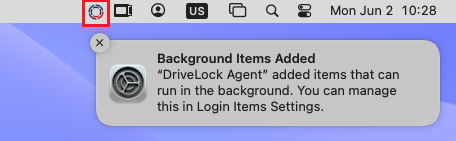
and registered as a login object:
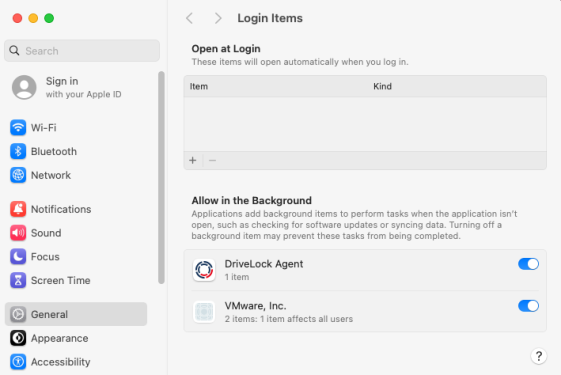
-
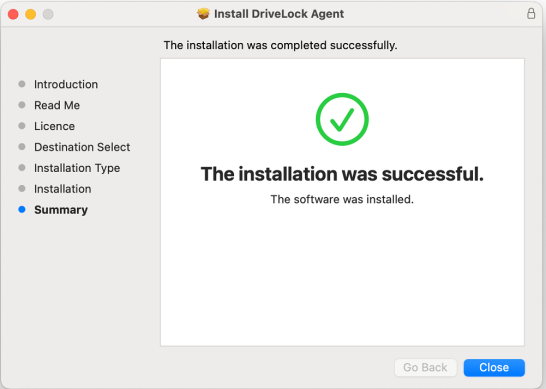
The last step shows the successful installation.