When connecting a drive
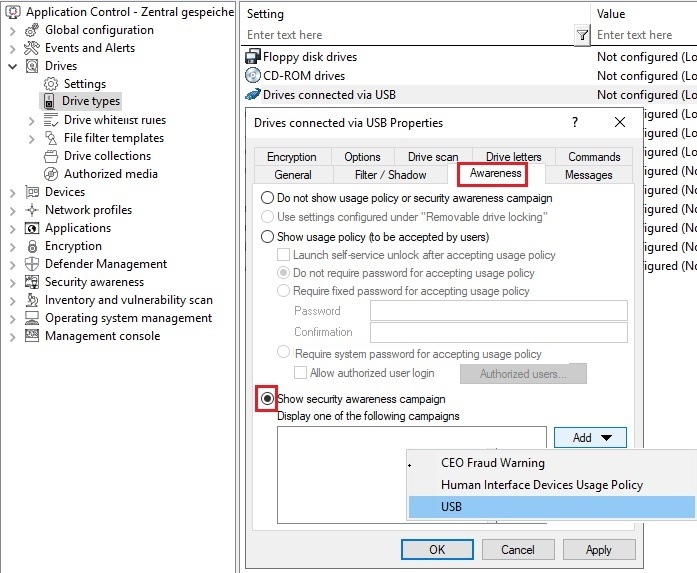
To configure Security Awareness so that a campaign is displayed when a drive is connected, use the Policy Editor as shown in the figure. This procedure applies to all types of drives.
-
Select the Drives node in the policy configuration.
-
In the Drive types section, select the drive you want to display a security awareness campaign for. In the example below, this is a USB bus connected drive.
-
Double-click the drive to open the Properties dialog.
-
On the Awareness tab, you can specify the following:
-
If you want to Show a usage policy, select this option. You can also assign passwords that are required for confirmation, or check the Launch self-service unlock after accepting usage policy option to allow a user to use the device as soon as the policy has been confirmed.
-
If you want a user other than the one logged on to the system to confirm the policy, select Require system password for accepting usage policy and Allow authorized user login. Click Authorized users to enter these users in a list and check Enable ”login as user” option by default. The self-service wizard runs under the authorized user.
Click here to find out how you can create a usage policy.
-
You want to display an awareness campaign when a user attempts to connect to the device. Now you can add a campaign you created earlier.
Select it from the list that opens after you click Add.
-
-
Confirm your settings.
For drive whitelist rules, security awareness campaigns can be included with all rules except the following: network drive rules, WebDAV network drive rule, and terminal services rules.