Unlocking DriveLock Agents temporarily
Using temporary unlocking, you can quickly and temporarily allow a connected DriveLock Agent to access locked drives, devices or applications and/or disable Microsoft Defender control.
This also works for multiple DriveLock Agents.
Example: you have locked all USB drives by default, but an end user needs immediate access to their USB drive so they can show their presentation. Temporary unlock gives the user access to their USB stick within a few minutes.
Information on unlocking DriveLock Agents that are offline can be found here.
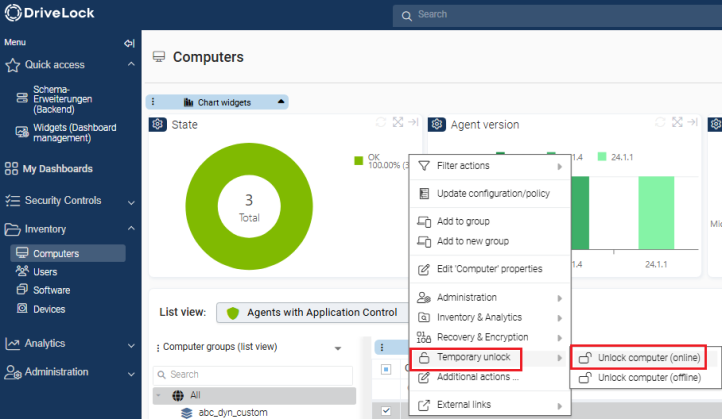
In the DriveLock Operations Center (DOC), use the menu command Unlock computer (online) in the context menu of the respective computer under Temporary unlock (see illustration).
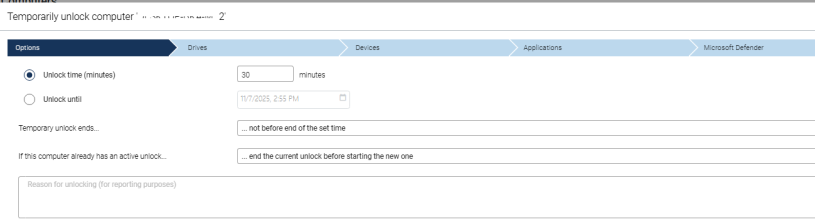
The unlock wizard is started. You can initially specify here how long the unlock period will last and whether it is subject to certain conditions. For example, several unlocks may be active at the same time. You can also state a reason for unlocking (important for the reporting functionality).
On the Drives and Devices tabs, you have the option of selecting individual or multiple drives or drive types or devices or device classes that you would like to unlock. This also includes user-defined device classes by specifying the class ID.
Application Control may be deactivated on the Applications tab and Microsoft Defender Control may be deactivated on the Microsoft Defender tab during unlock. See items 4 and 5 below.
Proceed as follows in the DriveLock Management Console (DMC):
-
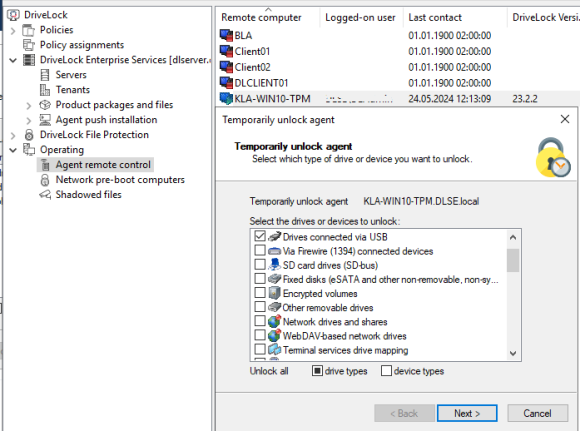
Either click the Unlock temporarily button in the agent's properties dialog or the menu command Unlock temporarily... from the context menu. If you want to unlock multiple agents, open the menu command Unlock multiple agents... in the context menu of the Agent remote control node using the Temporary unlock... menu command.
-
The unlock wizard opens. In the first dialog, select the drives or devices to unlock so that only the ones you authorize are unlocked.
Example: If you want to temporarily unlock a USB stick, check the box next to Drives connected via USB. -
Now specify the options for drive control. Extended access can be given temporarily by setting the following options for drives:
-
Disable file filtering during the unlock period: Allow access to files or file types that are otherwise blocked by a file filter.
-
Disable enforced encryption: Allow access to drives for which enforced encryption has been activated. Further information on enforced encryption can be found here.
-
Force accepting usage policy before drive can be accessed: The user must agree to a configured usage policy before the drive is unlocked.
-
Disable drive scan: If a drive scan has been configured (in the drive whitelist rules), you can disable it here.
-
-
If you are using application control, you can configure settings in the next dialog to disable it during unlocking as well. In addition, you can specify whether application files are added to the local hash database during this unlock period, and if so, which ones.
The option Require user approval for all files after unlock period ends provides a manual check of all previously "learned" applications before they are finally added to the local application database and therefore unlocked.
-
If you want to Disable Microsoft Defender control, you can specify this in the next dialog. Further information on Microsoft Defender Management can be found here.
Please note that this does not disable Microsoft Defender, only DriveLock's management of Defender settings.
-
Lastly, configure the unlock period, either in minutes or until a specific date and time.
Additionally, you can enter a text (e.g. the reason for the unlock) at this point. This text is also stored in the event and can be evaluated via reporting.
-
The unlocking starts immediately after you clicked Finish. If you have configured a user notification, it will be displayed on the agent.
You can also terminate the unlock prematurely by clicking Finish unlock. If applicable, a confirmation will be displayed also.