Rules for self-service
To allow users to use the self-service feature, they must be included in a self-service rule. In this rule, you also specify the modules that you want to allow within the self-service feature (e.g., only drives or only applications).
Configuration: DOC -> Security controls -> Agent settings -> Self-service -> Rules
The settings described for the DriveLock Management Console (DMC) (see below) are also available in the DOC. Here you create a self-service rule by clicking on  and then selecting the appropriate settings.
You can specify the following under Parameters :
|
Parameters |
Functionality |
|---|---|
|
Maximum allowed unlock interval |
Defines the maximum duration (in minutes) for which an unlock is permitted. Users are not allowed to specify a longer unlock period. |
|
Default unlock duration |
Specifies the time period in minutes that is suggested by default in the user interface. This value must not be higher than the maximum permitted time. |
|
Enable option "Unlock until <time>" |
Allows the user to select a specific end time for the unlock as an alternative to the time period. |
|
The reason for unlocking must meet a specific complexity |
|
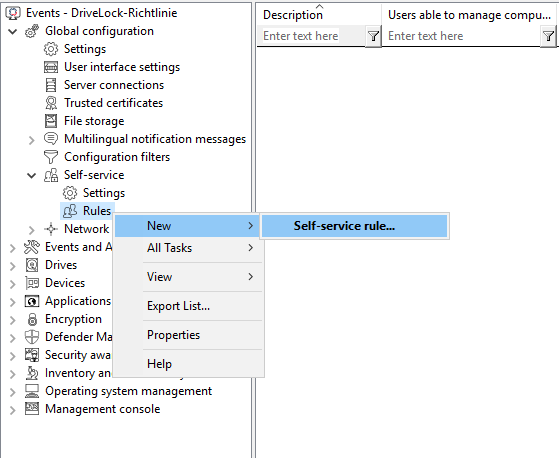
Proceed as follows in the DMC:
-
Create a new self-service rule.
-
On the General tab or in the Basic properties in the DOC, enter a short description and a comment to identify this self-service rule. Under End user information, you can add information about the self-service rules that can be selected, for example, why the user might want to select a particular rule. This text is then displayed in the self-service wizard on the selection page if you have configured more than one rule.
-
On the Self-Service tab or under Modules in the DOC, select the device types and modules to be unlocked and the time for unlocking.
If you select Use simplified module selection page on unlock wizard, the user is offered only these exact options and no advanced options. Activate the option Hide advanced options page on unlock wizard, then the user does not have to select an option.
In the DOC, you can specify that the user is shown extended options for selecting the respective modules. Further dialog pages then appear in the self-service wizard, for example with a list of all drive types that can be unlocked. If Application Control is picked as a module, the end user can decide if Application Control is turned off during unlocking. If it is, apps that are started during the unlocking period will be added to the local whitelist (i.e., they'll be learned).
-
Under Options, you can specify, for example, whether end users must accept usage policies before they are allowed to start unlocking. You can also specify that unlocking is terminated when the end user logs off. In the DOC, you can also specify whether the user can decide for themselves whether to unlock (default value).
-
On the tabs Logged on users and Computers tabs or under Parameters in the DOC, you can add the Windows users who are allowed to use the self-service wizard and the computers where these users are allowed to unlock with the wizard. If you select the < Local computer > option, an end user can unlock any computer to which this policy applies and where they can start the self-service wizard locally. You can also add DriveLock groups, computer names or Active Directory computers, groups or OUs.
You can find a use case for self-service here.