Installation with disk image file
Please note that there are differences between macOS versions in terms of the system settings that need to be changed, and that these changes may need to be made in different places!
Proceed as follows to install the DriveLock macOS Agent on macOS clients using a disk image file. Click here for information on how to install the agent with the Package Installer.
First, copy the DriveLock Agent app to the /Applications folder and then activate the DriveLock Agent system extension.
-
Double-click the DriveLock Agent.dmg disk image file.
-
Drag and drop the DriveLock Agent app into the Applications folder.
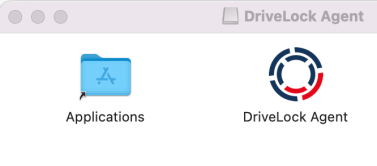
-
Start the DriveLock Agent system extension activation process from the DriveLock Agent app.
-
Open the DriveLock Agent app in the Applications folder.
-
Click the Install extension button.
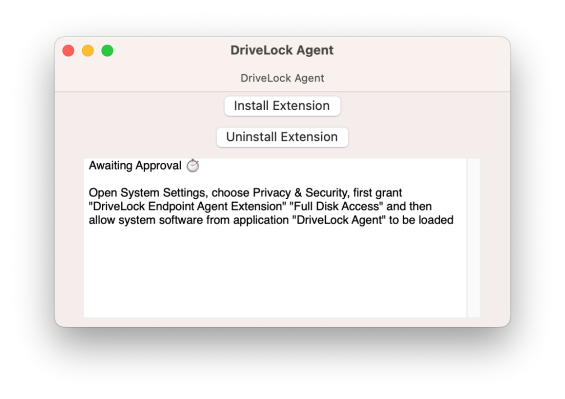
Alternatively, you can enable the system extension from the command line by entering the following command:
% /Applications/DriveLock\ Agent.app/Contents/MacOS/DriveLock\ Agent -a -
-
Next, open the system settings by clicking Open System Settings.
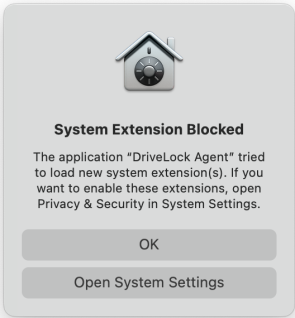
-
Then allow the system software to be loaded.
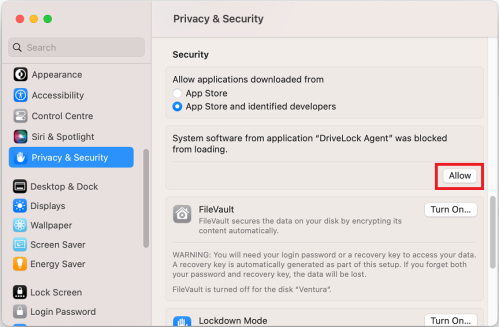
-
Enter your admin password to change the system settings.
-
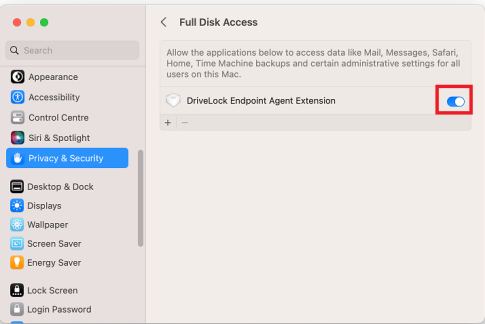
Now activate full disk access for the DriveLock Endpoint Agent Extension in the System Settings/Settings -> Privacy & Security area.
-
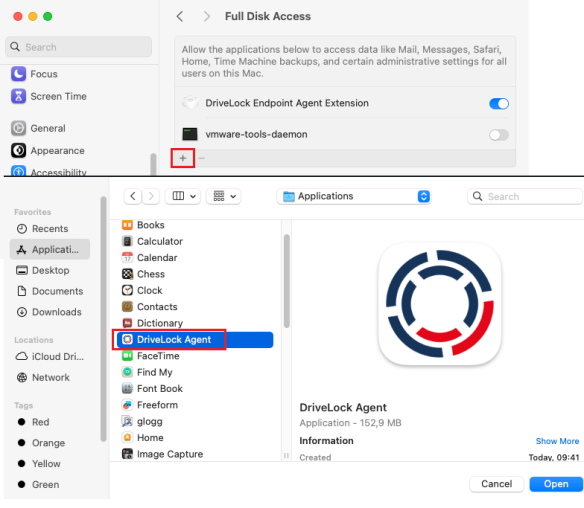
Once the DriveLock Endpoint Agent Extension has been allowed, you need to grant the DriveLock Agent access to your hard drive. To do so, click the '+' symbol and select DriveLock Agent from the programs.
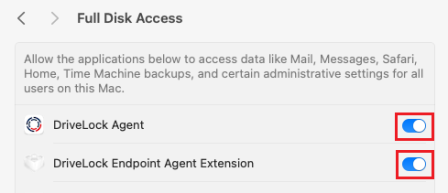
It is important that both the extension and the DriveLock Agent have access:
-
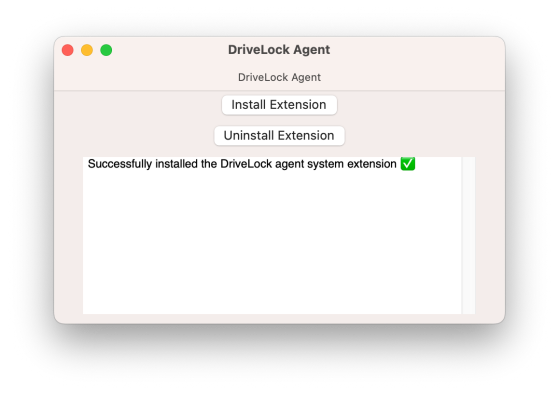
You'll know the extension is installed when you see this message.
-
Now, configure the DriveLock Agent by running the following command line:
% sudo /Applications/DriveLock\ Agent.app/Contents/MacOS/dlconfig -t tenant_name -s DES_server_url -d debug_levelSpecific example:
% sudo /Applications/DriveLock\ Agent.app/Contents/MacOS/dlconfig -t root -s https://DES_HOSTNAME:6067 -
If necessary, you can check the process status of the DriveLock Agent in the activity display.
-
After making the settings for full hard disk access, please restart the system.
-
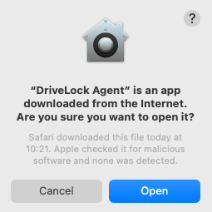
After logging in, the following dialog opens. Please confirm the use of the DriveLock Agent App by clicking Open .
-
The DriveLock Agent app has now been successfully added and the DriveLock Agent icon will be displayed in the menu bar as follows
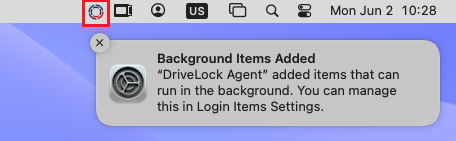
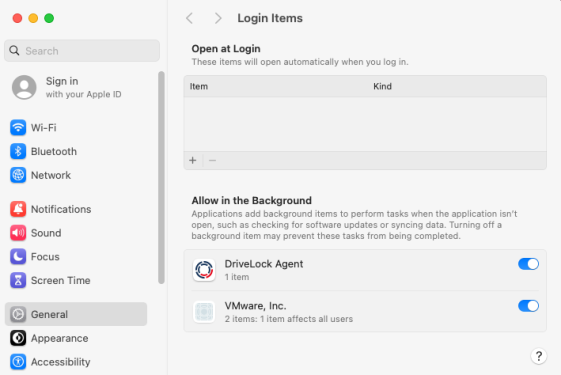
and registered as a login object:
-
The DriveLock Agent is now fully functional.